How to track your money in real time, not a month late
Card statements arrive weeks after you spend. Here's a simple routine to keep your spending up to date: log it the same day, confirm it when the statement lands.

It was the 20th of the month, and I was standing in the queue at the hawker centre deciding between the $5 chicken rice and the $8.50 something-with-a-salted-egg-sauce. I'd set myself a food budget that month, so I did the responsible thing and opened my tracking to see how I was doing.
It told me, in great detail, how I'd done last month.
That's because my routine at the time was entirely statement-based. On the first of the month I'd import last month's card statement and look at the categories. It's a routine I still like. But on the 20th, the most recent statement was three weeks old, and everything I'd spent since was invisible. My food budget said I had plenty left. I had no idea if that was true.
(I got the chicken rice. Mostly out of uncertainty.)
Statements are brilliant for accuracy. They're terrible for timing. This post, and the carousel it goes with, is about a small routine that fixes that: log your spending the same day, and let the statement confirm it later. I'll go through each slide, with a worked example and the bits I've learnt using it myself.
How to track your money in real time
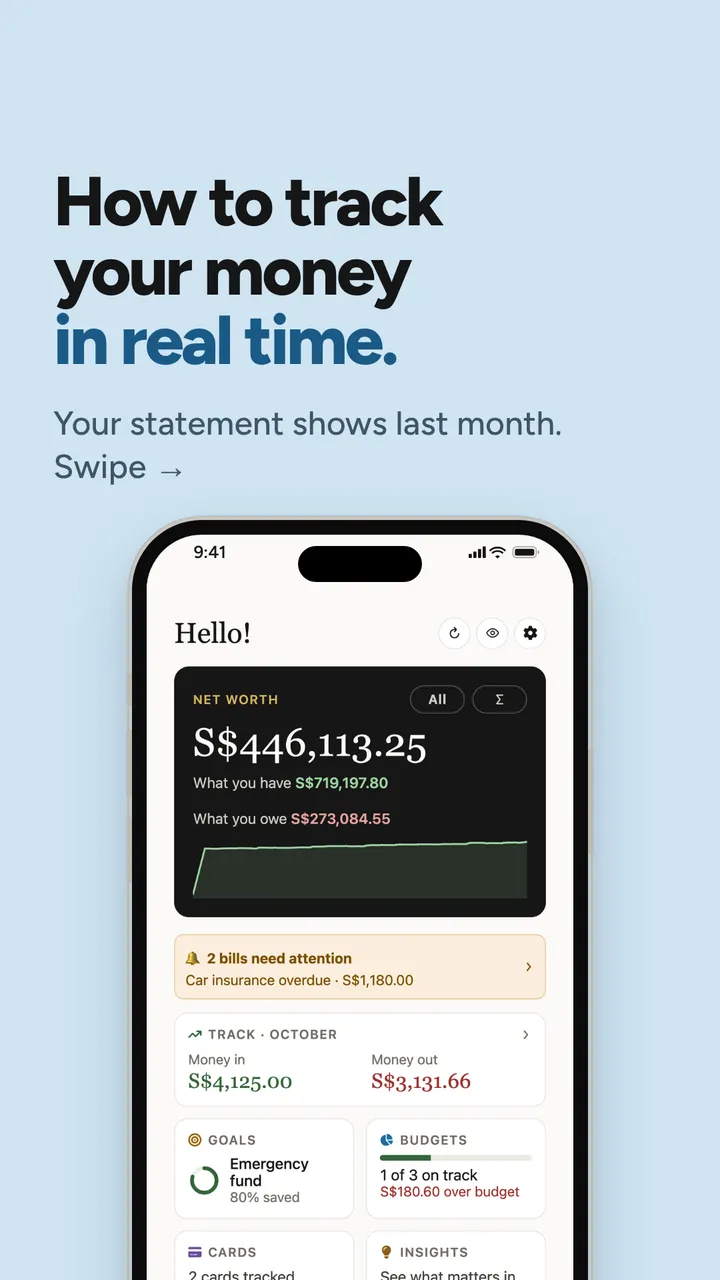
The cover sums up the problem in five words: your statement shows last month.
When people say they "track their spending", they usually mean one of two things. Either they look back at statements once a month (accurate, but late), or they try to write everything down as they go (current, but easy to get wrong and easy to abandon). The idea in this carousel is to do both, with each one covering for the other's weakness.
What "real time" means here
I want to be precise, because "real time" gets thrown around a lot. In this post it means: what you type in shows up at once, and the bank's copy follows when the statement lands. Your budgets reflect today. The statement then confirms the numbers, so they're also correct.
What this means for you
If you've tried tracking before and stopped, it was probably because one of the two halves was missing. Statement-only gets stale; typing-only drifts from reality. The combination is what makes it stick.
Why card statements come too late
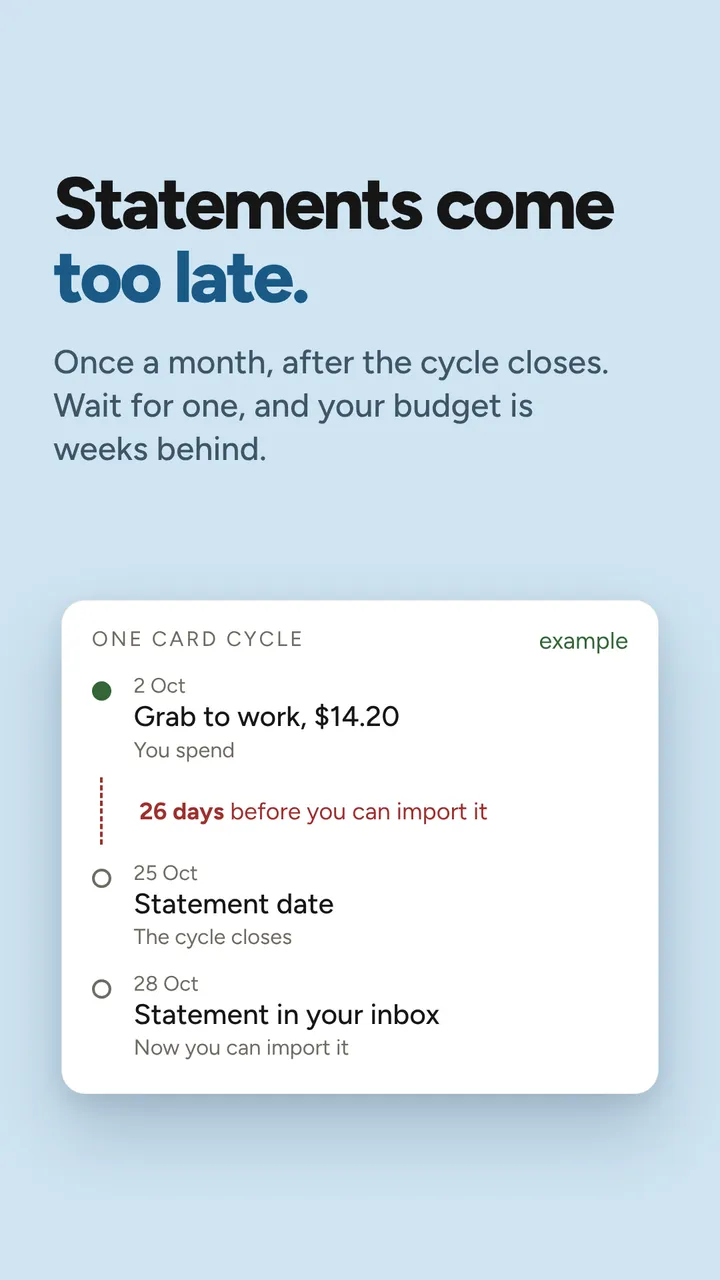
A credit card statement covers a cycle, which usually doesn't line up with the calendar month. The cycle closes on your statement date, and the statement itself arrives a few days later. Only then do you have the complete, tidy record you'd import.
A worked example: the $14.20 that didn't exist
Take the example on the slide:
- 2 Oct: you take a Grab to work, $14.20.
- 25 Oct: your card's statement date. The cycle closes.
- 28 Oct: the statement lands in your inbox.
From 2 Oct to 28 Oct is 26 days. If you track only from statements, that ride doesn't exist in your budget for 26 days.
Now scale it up. Say your food budget is $600 a month, and by the 20th you've actually spent $480 on food on a card whose statement hasn't come yet. A statement-only view of this month shows $0 spent and $600 left. The real figure is $120 left. That gap is exactly when people overspend without realising.
Every bank and card has its own cycle and statement day, so your dates will differ. But the shape is the same for everyone: a statement is a look back, not a live view.
To be fair to banks, their own apps usually show recent card transactions. The issue is that each app shows one bank, and the statement, the record you'd import into a budget, only comes once a month.
What this means for you
Find your statement date for each card. It's printed on every statement. Knowing it tells you when a cycle resets for minimum spend, and how stale your imported numbers can get.
The fix: log it the same day, confirm it later
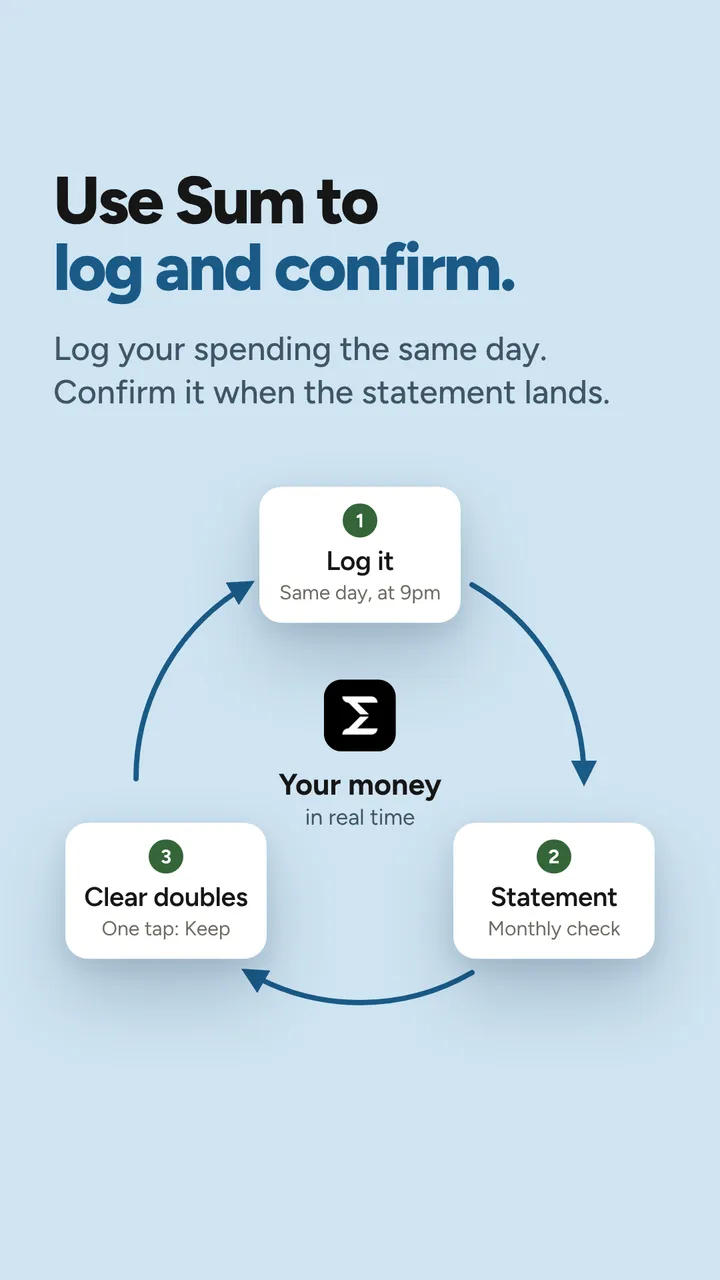
The idea is a loop with three parts:
- Log it. Type in what you spent, the same day. A few seconds per item.
- Statement. Once a month, bring in the statement.
- Clear doubles. Where your typed-in entry and the bank's line are the same purchase, keep one.
The typed-in version gives you speed. The statement gives you accuracy. Together, your numbers are both current and correct.
A worked example: one week through the loop
Here's an example week:
- Monday to Friday: each evening you log the day's spending. By Friday night your food budget knows about every lunch.
- Later that month: the statement arrives. You import it. It contains the same purchases, now with the bank's descriptions.
- Clearing doubles: Sum spots which typed-in entries match statement lines, and asks you to confirm. You tap Keep on each match.
At the end, every purchase is in once, confirmed by the bank, with the names and categories you gave it.
What this means for you
Don't try to make your typed-in entries perfect. A rough amount and a category is enough. The statement fixes the details later. The point of logging is to keep your budget honest this month, not to be an accountant.
Step 1: Add your accounts, once
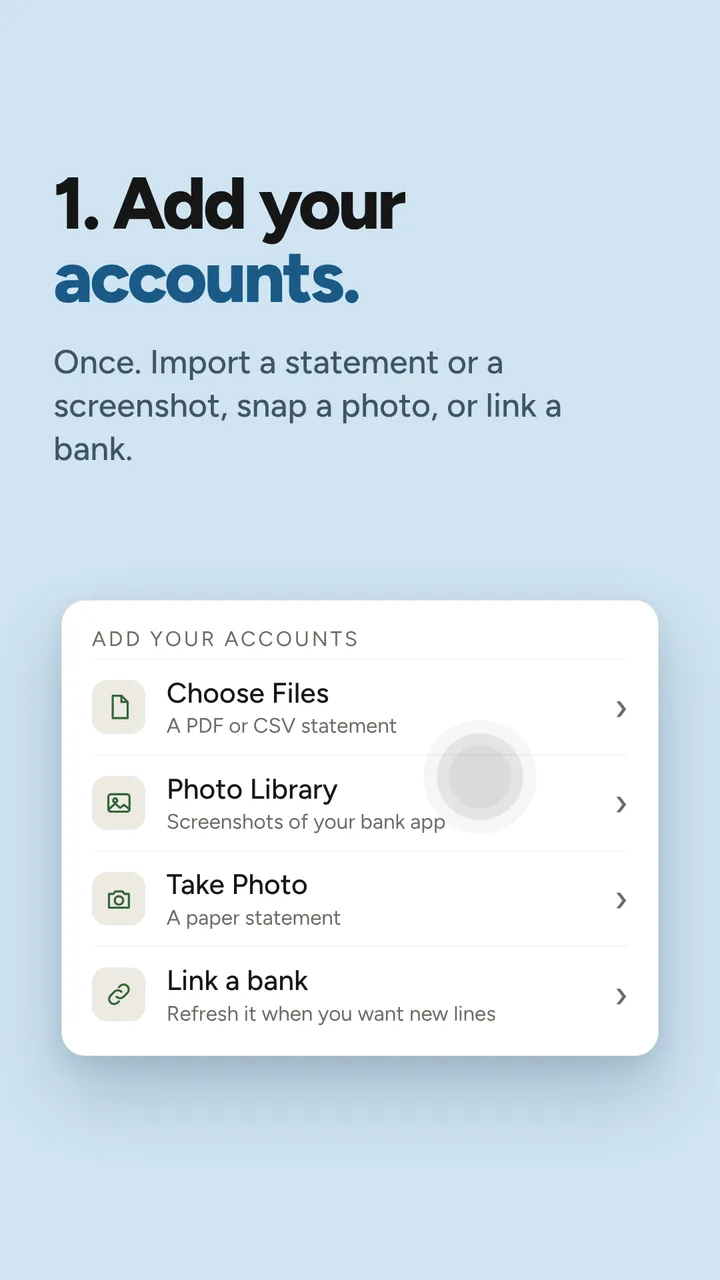
You only do this part once. There are four ways in:
- Choose files: a PDF or CSV statement from your bank or card.
- Photo library: screenshots of your banking app.
- Take photo: for the odd paper statement that still arrives by post.
- Link a bank: refresh it when you want the latest lines. Linking covers some banks, not all of them.
Whichever you use, Sum reads your statement and sorts each line into a category.
A worked example: which way for which account
I mix and match. Here's roughly how it splits for a setup like mine:
| Account | How it comes in | Why |
|---|---|---|
| Salary account | Link a bank | Lots of transactions, and refresh gives the latest |
| Card 1 | PDF statement | Monthly is fine; I log daily spending on it anyway |
| Card 2 | PDF statement | Same |
| An old account | Screenshot | Barely used; a screenshot now and then is enough |
The point is that you don't need every account linked. A statement once a month plus daily logging gets you to the same place.
What this means for you
Start with the accounts most of your spending goes through, usually your cards. If you haven't set up yet, how to start tracking your expenses walks through it alongside budgets, bills and goals.
Step 2: Log it at 9pm
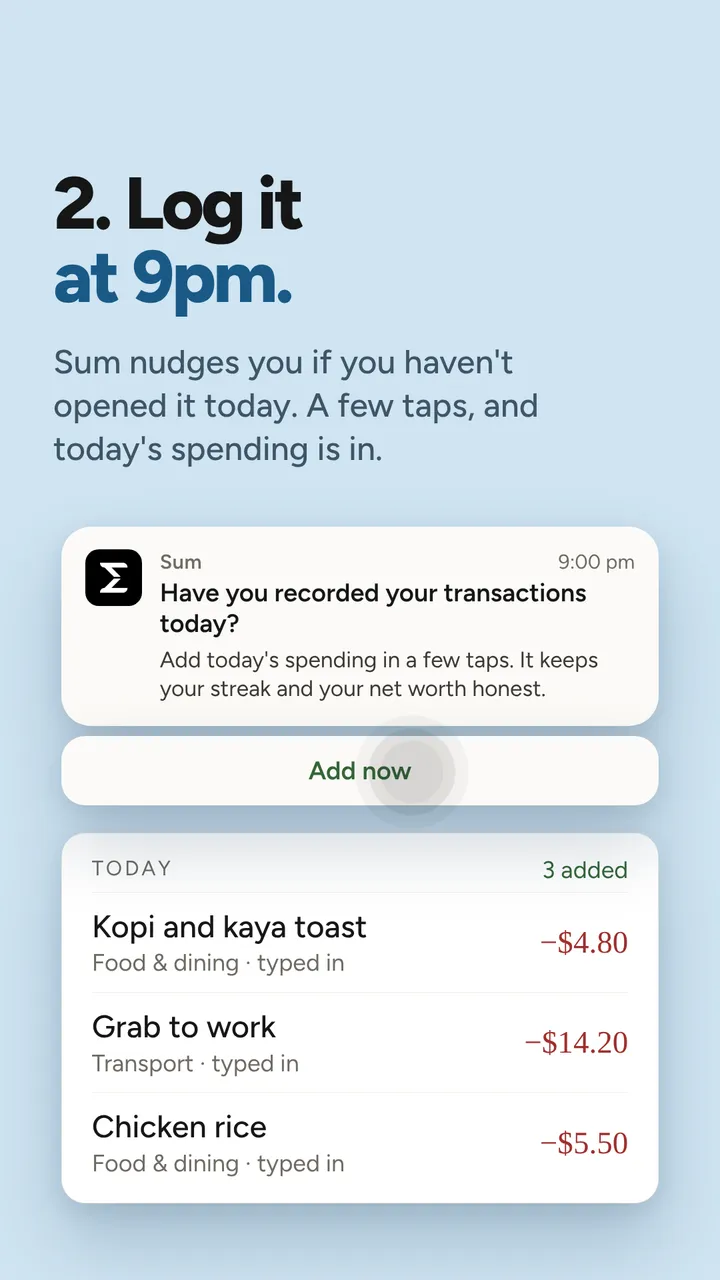
This is the habit part. At 9pm, if you haven't opened Sum that day, it sends a gentle nudge: have you recorded your transactions today? Tap Add now, put in the day's spending, done.
If you've already opened Sum that day, it doesn't nag you. And you can turn the nudge off in settings if it's not for you.
Why 9pm?
Because by then most of the day's spending has happened, and you still remember it. Try reconstructing last Tuesday's lunch from memory a month later. I've tried. It doesn't go well. That was exactly how my first-ever budget died: a weekend I didn't write down and couldn't remember by Monday.
A worked example: what a minute a day adds up to
The sample day on the slide:
- Kopi and kaya toast: $4.80
- Grab to work: $14.20
- Chicken rice: $5.50
- Total: $4.80 + $14.20 + $5.50 = $24.50
Small. But say a month has 22 working days that look like that:
22 × $24.50 = $539.
That's the kind of number that's invisible on the 20th if you're waiting for a statement, and obvious if you've been logging. Not because $24.50 a day is bad. Because you can only decide whether it's fine if you can see it.
What this means for you
Log by category, not by perfection. "Lunch, $6" is enough. And if you miss a day, don't try to catch up from memory; let the statement fill the gap. Missing a day isn't failing. Stopping is.
Step 3: When the statement's out, bring it in
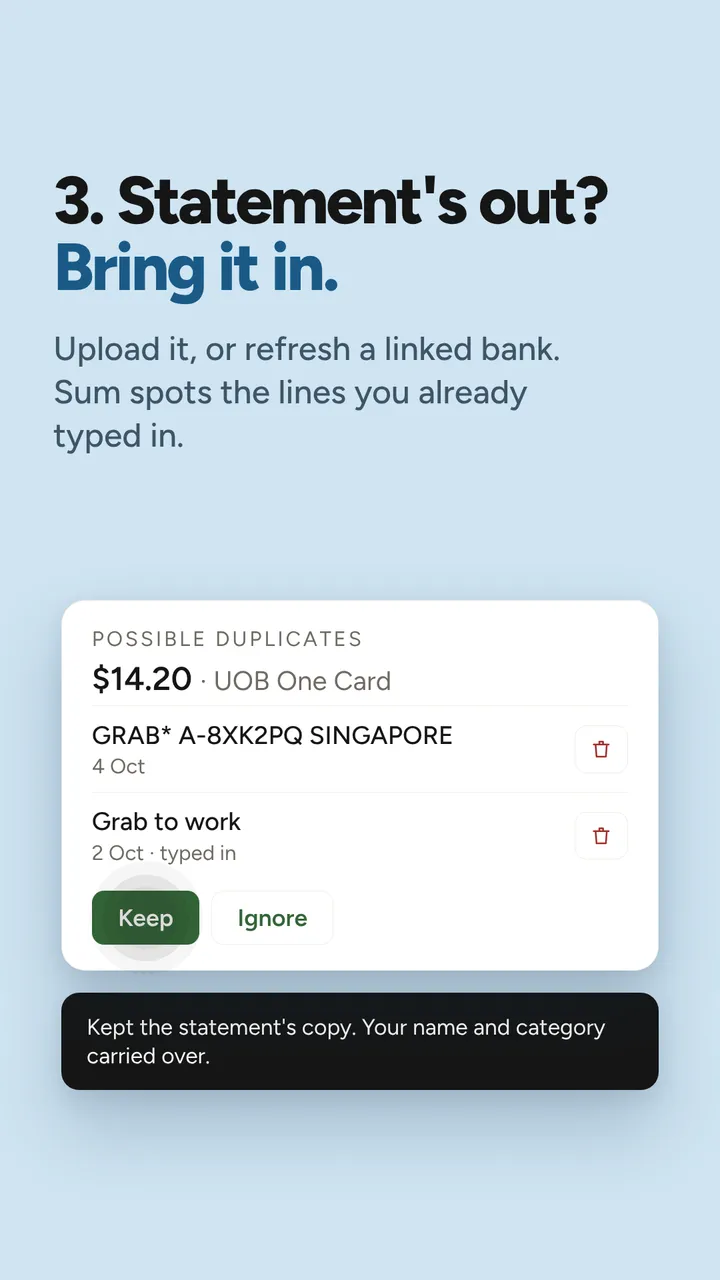
When your statement arrives, upload it (or refresh a linked bank). Now Sum has two versions of some purchases: the one you typed in, and the bank's.
How Sum spots a possible duplicate
Sum looks for pairs that are probably the same thing:
- same account,
- same amount,
- a few days apart,
- one from the statement and one typed in.
It flags them as possible duplicates and asks you. You tap Keep, and Sum keeps the bank's copy, carrying over the name and category you gave it. Nothing is removed until you tap. Sum flags; you decide.
A worked example: the Grab ride, twice
On the slide, the $14.20 ride shows up twice:
- Typed in on 2 Oct: "Grab to work", Transport.
- On the statement, dated 4 Oct: a line in the bank's shorthand, something like "GRAB* A-8XK2PQ SINGAPORE".
Same account, same $14.20, two days apart, one typed and one from the statement. That's a match. You tap Keep. What's left is one entry, dated as the bank recorded it, named "Grab to work" and filed under Transport.
The dates differ because a card purchase often posts a day or two after you make it. That's normal, and it's why Sum looks a few days either side.
When to tap Ignore
Sometimes two entries genuinely are different purchases. Say you took the same $14.20 ride on Monday and again on Wednesday. They'd look alike. If you know they're two real rides, tap Ignore and both stay.
What this means for you
Clearing doubles takes a minute or two a month. Do it in one sitting right after the import, while you still remember the month. If you both link a bank and import its statement, you'll see the same check.
Step 4: Then repeat, with two reminders
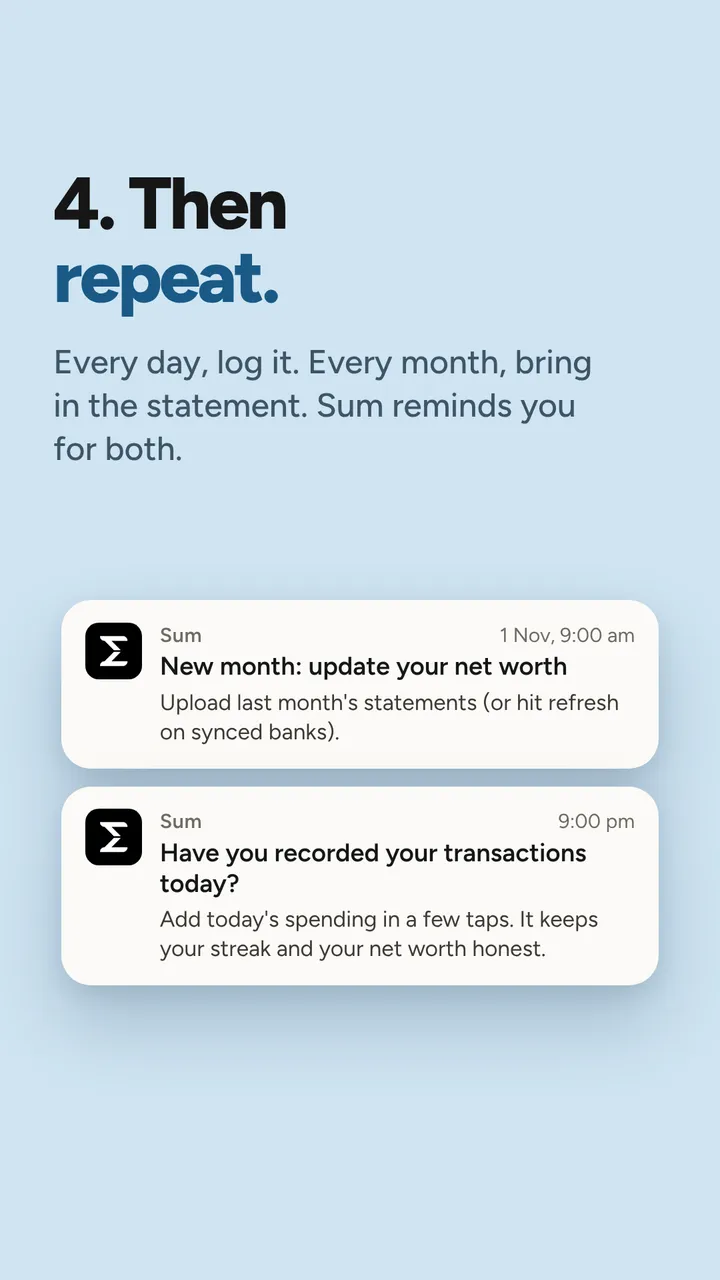
That's the whole routine. Every day, log it. Every month, bring in the statement. You don't have to remember either:
- On the 1st of each month at 9am, Sum reminds you to update your net worth: upload last month's statements, or hit refresh on synced banks.
- At 9pm, if you haven't opened Sum that day, the daily nudge.
A worked example: the time it actually takes
Here's a rough, honest estimate for a month:
- Daily logging: about 1 minute × 30 days = 30 minutes
- Monthly import and clearing doubles: about 10 minutes
- Total: about 40 minutes a month
Forty minutes, spread out so thinly you barely notice it. Compare that to my old annual spreadsheet evening before Chinese New Year, which took a whole night and was out of date by the next morning.
What this means for you
Tie the 9pm log to something you already do every evening: brushing your teeth, the walk back from the MRT, the last episode. Habits stick better when they ride along with an existing one.
Linked your bank? You can skip most of this
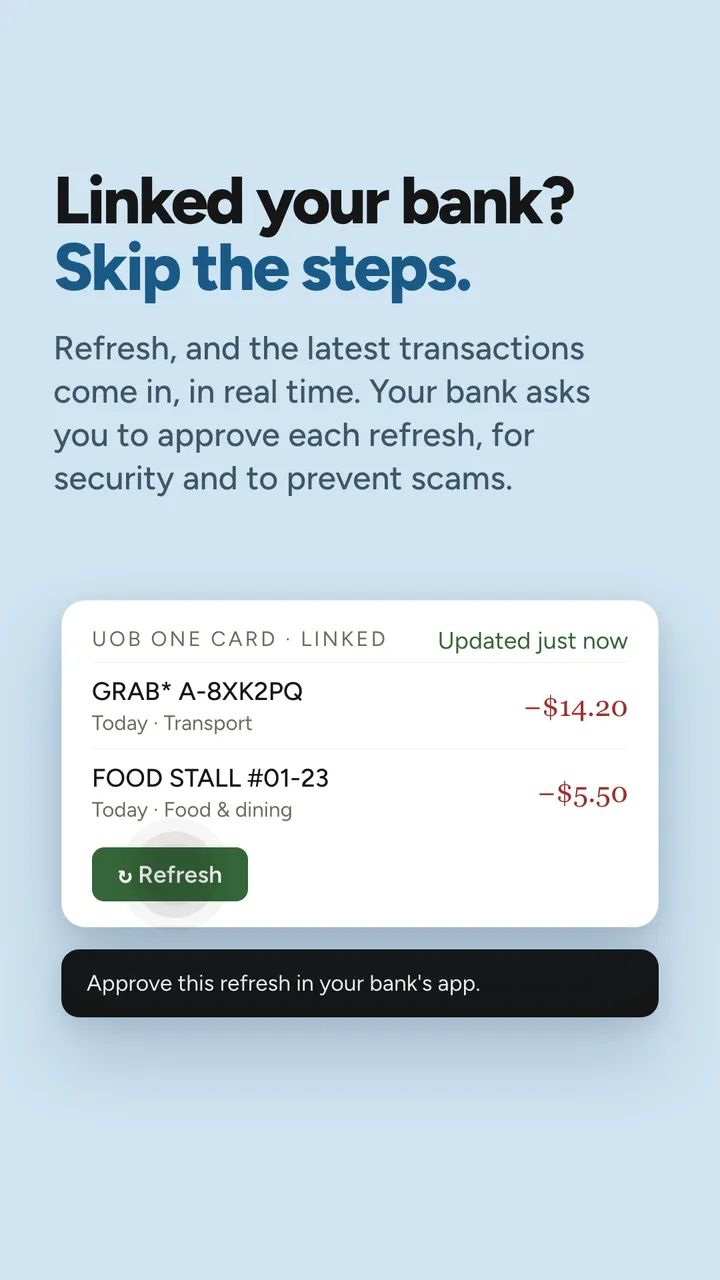
If your bank is one you can link, the routine gets simpler. Tap refresh and the latest transactions come in, no typing and no statement needed. You can link up to two banks on the free plan; unlimited bank links are on the paid Essential plan.
Why your bank asks you to approve each refresh
You'll notice your bank asks you to approve each refresh in its own app. That's normal and, honestly, reassuring. Singapore banks ask for that approval every time, for security and to help prevent scams. It also means nothing gets pulled without you knowing.
Sum is read-only either way: it can see transactions, but it can never move money, make a payment or hold your funds.
What this means for you
You can mix the two approaches. Link the account with the most transactions and use log-and-confirm for the rest. That's what I do.
Your money, in real time
The last step slide puts it in one line: typed in today, confirmed by the bank when the statement lands.
Put it together and three things change.
- Your budgets reflect today. On the 20th, your food budget is telling you about this month, not last month.
- Your net worth stays current. That's what you have minus what you owe, across your accounts, updated as you go rather than once a month.
- Nothing's counted twice. The statement confirms what you typed, and the duplicate check keeps each purchase in once.
A worked example: the 20th, revisited
Back to my hawker centre queue. Say my food budget is $600, I've been logging daily, and by the 20th the logged total is $480. Now the answer is right there: $600 − $480 = $120 left for ten days, or about $12 a day.
That doesn't decide between the chicken rice and the salted egg dish for me. But it does mean I'm deciding with real numbers instead of a feeling.
What this means for you
The goal isn't perfect data. It's data that's good enough, soon enough, to change a decision.
If you only remember three things
- A statement is a look back. It can be a month old by the time you import it.
- Log the day's spending at night; let the statement confirm it; tap Keep on the doubles.
- If you can link a bank, refresh replaces the typing. Approving each refresh is your bank keeping you safe.
How I keep track of this
My first-of-the-month routine is still the backbone: import last month's card statements, look at my budgets, check my card trackers, glance at the net worth line. Ten minutes, usually with a kopi.
What I've added is the 9pm log, mostly in months where I'm watching a budget closely. It takes about a minute. On the 1st, I import the statement, tap Keep on the matches, and everything lines up. I don't type in the salary account; that one's linked, and I just refresh it.
The daily logging, statement and screenshot imports, the duplicate check and linking up to two banks are all on Sum's free plan. Sum is free to start.
If you've ever started tracking and quietly stopped a few weeks later, you're in good company. I wrote about why that happens in the psychology of budgeting. A routine this small is much easier to keep. As the last slide says, save this one for your next statement day.
Talk soon, Brandon

Sum is launching in Singapore soon.
Your banks, cards, CPF and HDB flat, added up into one net worth. Statements sorted, card caps tracked, bills remembered.
Brandon · Finance team, Sum
Brandon is on Sum's finance team in Singapore. Brandon reads the CPF Board, IRAS and MAS updates so you don't have to, and turns our carousels into the longer version. Questions, corrections or something to share? Email Brandon at [email protected].
Got something interesting to share?
A money story, a question, something we got wrong, or a tip other Singaporeans should hear. Reach out to me at [email protected], or leave your email and I'll write to you.
Any app screens shown use sample data, not a real person's. Sum is free to start; some features need a paid plan.